
Gang sheets
How to troubleshoot gang sheet resolution
On this page
Short answer
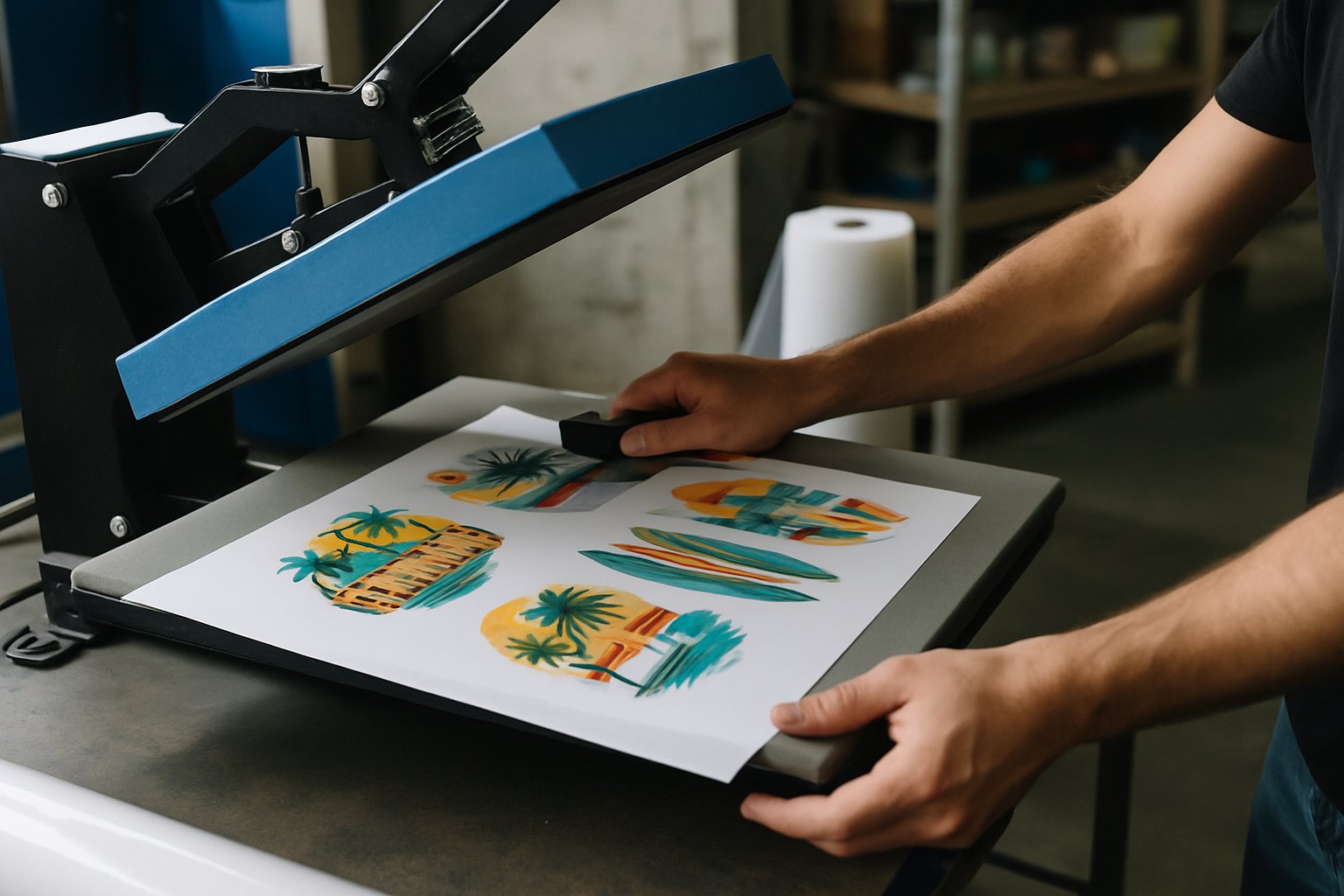
To fix a gang sheet resolution problem, find the first stage where the artwork loses detail. Check the original image, its placed size, and the exported sheet in that order. Do not start by changing printer settings when the defect is already visible in the source file.
Judge the actual production file at the intended physical size. A browser preview may be reduced for display, while a large exported file may contain small images that were enlarged. Neither the preview nor the file size tells the whole story.
Start with pixels and print dimensions
Image resolution describes how many image pixels are assigned to a physical length. Adobe's Image Size documentation distinguishes pixel dimensions, physical dimensions, resolution, and resampling. Resampling changes the pixel data; it is different from simply choosing a print size. Adobe image size and resolution.
Shops often use DPI when discussing uploaded artwork. For a raster image, pixels per inch, or PPI, is the clearer term. Printer dot settings describe a different part of the process. Use the terminology your supplier accepts, but write the physical size and pixel dimensions beside it to remove doubt.
Formula: effective PPI = image width in pixels ÷ printed width in inches.
Example: an image is 1,800 pixels wide and will print 6 inches wide. Effective PPI = 1,800 ÷ 6 = 300. If the same example image is enlarged to 12 inches, effective PPI = 1,800 ÷ 12 = 150. These are worked examples, not universal acceptance limits.
Repeat the check for height. If the proportions were changed, a satisfactory width calculation can hide a problem on the other axis. Ask the supplier for its artwork requirements rather than treating a familiar resolution number as a guarantee.
Check the original before the sheet
Open the file that the customer supplied, not a saved preview from a message thread. Look at curves, small lettering, fine outlines, and transparent edges. Ask whether the file came from an original design export or a screenshot.
If the source is already soft, placing it on a larger canvas does not restore the missing information. Ask for the original artwork, a cleaner export, or a suitable vector file when available. Explain which detail is failing so the customer knows what to replace.
Avoid requesting a vague higher-resolution file without context. State the intended print width and height and describe the visible issue. A customer can otherwise send the same pixels with a different resolution label and believe the problem is solved.

Check each placed design
A sheet can contain images with very different effective resolutions. Inspect each source at its placed dimensions. Do not assume the sheet's export setting applies equally to every design's original detail.
Make a small intake record with the source name, requested size, copy count, and any concern. Keep this separate from the customer's visual approval when the customer has not approved production quality. A proof approval should explain what is being approved.
Use the DTF image DPI checker as a dimensional check. It can help connect pixel count with output size; it cannot judge whether fine lettering was poorly drawn or whether compression artifacts are acceptable.
Transparent padding deserves attention. A file's outer dimensions may include empty space around a small visible design. Decide whether the customer's size means the full file boundary or the visible artwork. Record that decision before arranging copies.
Trace the export step
Save a copy of the working layout and export using the transfer supplier's requested format and settings. Then reopen the export in a separate view. Compare the final physical dimensions, design count, and edges with the working layout.
Watch for automatic resizing, image optimization, or a download option intended for screen use. The exact options depend on the application, so avoid copying menu instructions from an unrelated program. The important check is the file that will actually reach production.
Formula: required pixel width = intended width in inches × chosen export PPI.
Example: for a 22-inch-wide sheet exported at an assumed 300 PPI, required width = 22 × 300 = 6,600 pixels. That export size does not prove every image on the sheet began with enough detail. It only describes the final raster canvas.
Check the height in the same way. If the export has the right proportions but the wrong physical dimensions, inspect how the receiving software reads size metadata before resizing everything again.
Separate preview problems from file problems
A preview exists to help someone view a file. It may not be the file used for printing. Ask the supplier which download is the production master and which is only a thumbnail or proof.
Compare the same detail in the source, working layout, production export, and RIP preview. Keep zoom behavior consistent enough to make a useful comparison. A magnified preview can look rough even when it is doing its intended job.
If the production master looks correct but the supplier reports low resolution, exchange the actual dimensions and pixel count. That creates a shared fact to investigate. Sending another screenshot usually adds another uncertain step.
Do not confuse other defects with resolution
Soft artwork, unwanted backgrounds, white edges, and missing fine detail can have different causes. Resolution is only one part of the file and print workflow.
| What you see | First check | Avoid assuming |
|---|---|---|
| Rough curves in the original | Source quality and intended size | A new export label will repair them |
| Clean original, soft final export | Resizing and export path | The printer caused the softness |
| Unwanted pale edge | Transparency and edge pixels | More pixels alone will remove it |
| Correct file, unexpected printed edge | RIP setup and a controlled sample | Every defect is artwork resolution |
Do not change several RIP settings to compensate for an unconfirmed file problem. Preserve the current working setup and ask the operator to isolate the defect with a known-good file. That helps distinguish a new artwork issue from a changed production condition.
Decide whether to replace, reduce, or accept
If the source is inadequate, offer choices in plain language. The customer may provide the original, approve a smaller print, pay for artwork reconstruction, or accept a documented limitation. Do not present automatic enlargement as recovered original detail.
For a size reduction, calculate the new effective resolution and check whether the smaller artwork still suits the garment. A technically cleaner file can still be the wrong product if the customer expected a large chest print.
If a physical sample is needed, identify the approved file version and production setup. Keep the sample or a clear record of it. Do not let a successful sample of a revised file become approval for an older upload that remains in the order folder.
Make the release check repeatable
Before release, confirm the source, dimensions, copy counts, final file, and approval status. Give the production master a clear version name. Remove outdated copies from the active queue while preserving them in the job history.
When a remake occurs, record where the problem first appeared. Source, placement, export, and output are useful categories because each leads to a different fix. A single label such as bad artwork makes future prevention harder.
Keep the instructions short enough that staff can follow them during a busy shift. A repeatable dimensional check and a clear hold process are more useful than an acceptance rule nobody can explain.
Frequently asked questions
Does changing the DPI field improve my artwork?
Why does a large gang-sheet file contain blurry designs?
Should every image use the same resolution?
Can I approve from a phone preview?
Sources
- Set image size and resolution in Photoshop (opens in new tab), accessed 19 Oct 2026
Written by
DTF Gang Sheet Tools editorial team
Site pages